Access and Onboarding
Welcome to the OmniWOT platform! This guide will walk you through the process of accessing the platform and completing your initial setup.
Platform Access
You can access the OmniWOT platform at URL.
User Registration
Follow these steps to create your account:
Step 1: Navigate to the Platform
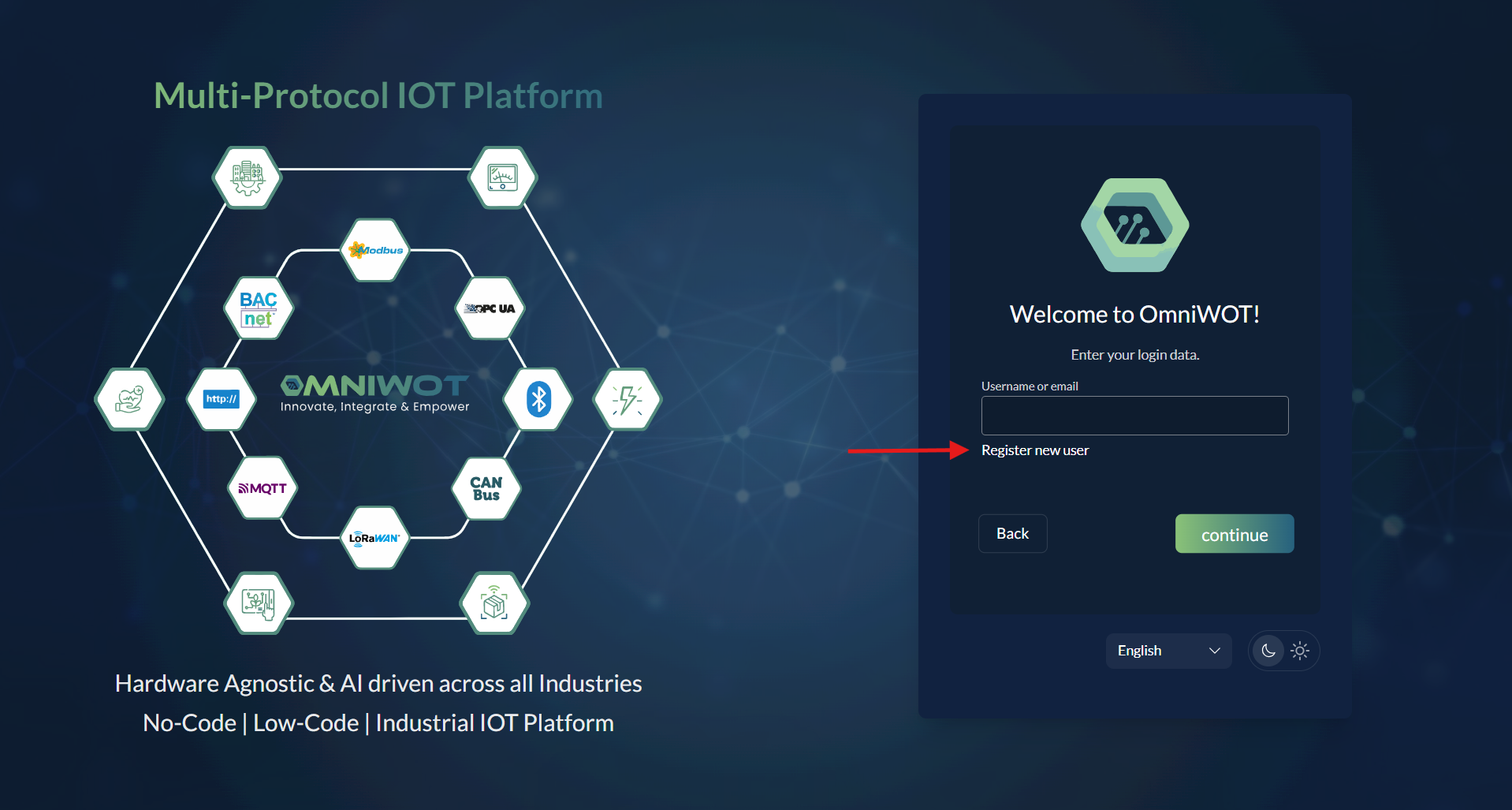
Step 2: Complete Registration Form
- Fill in all required information in the registration form
- Accept the Terms of Service and Privacy Policy
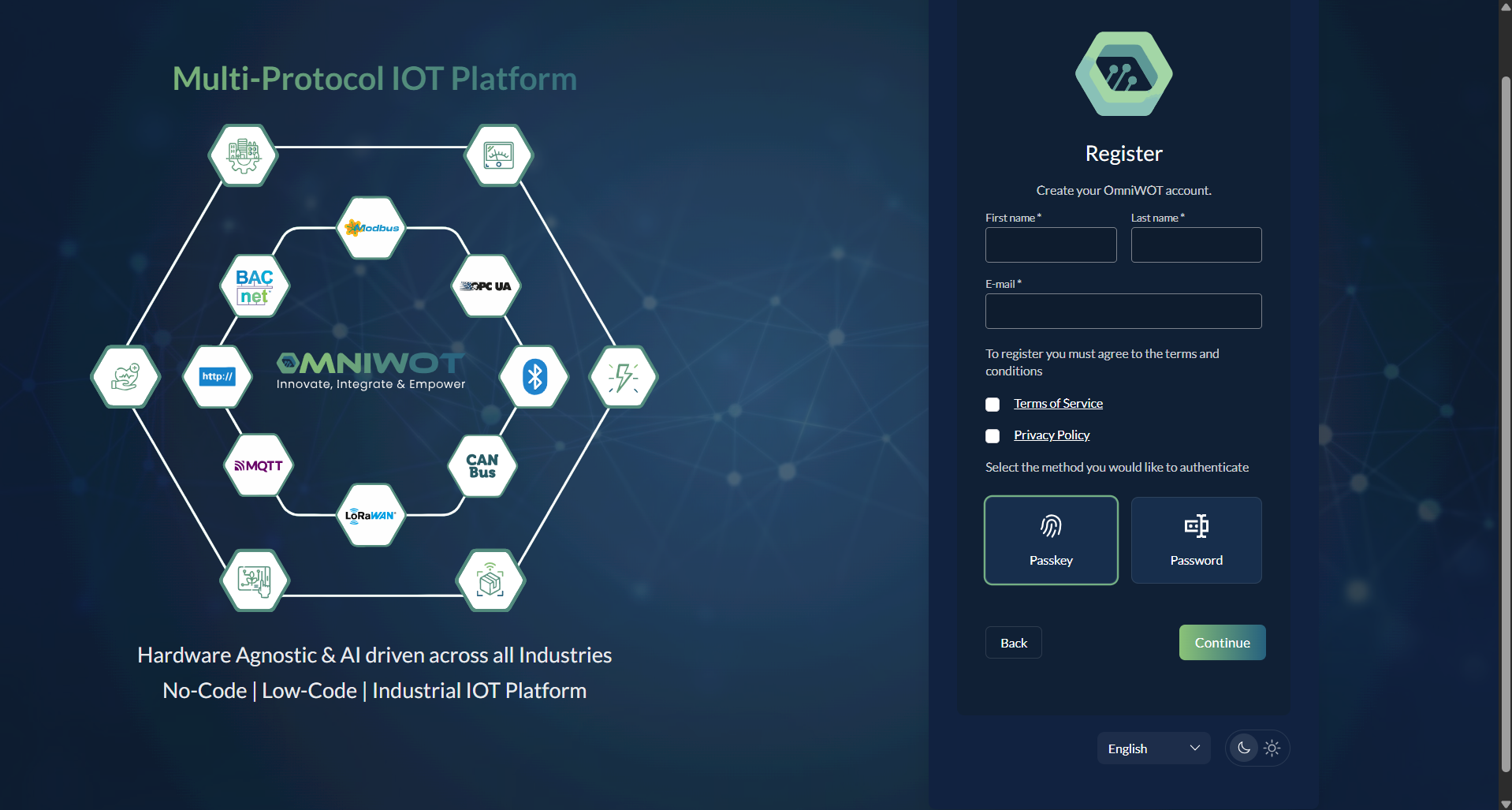
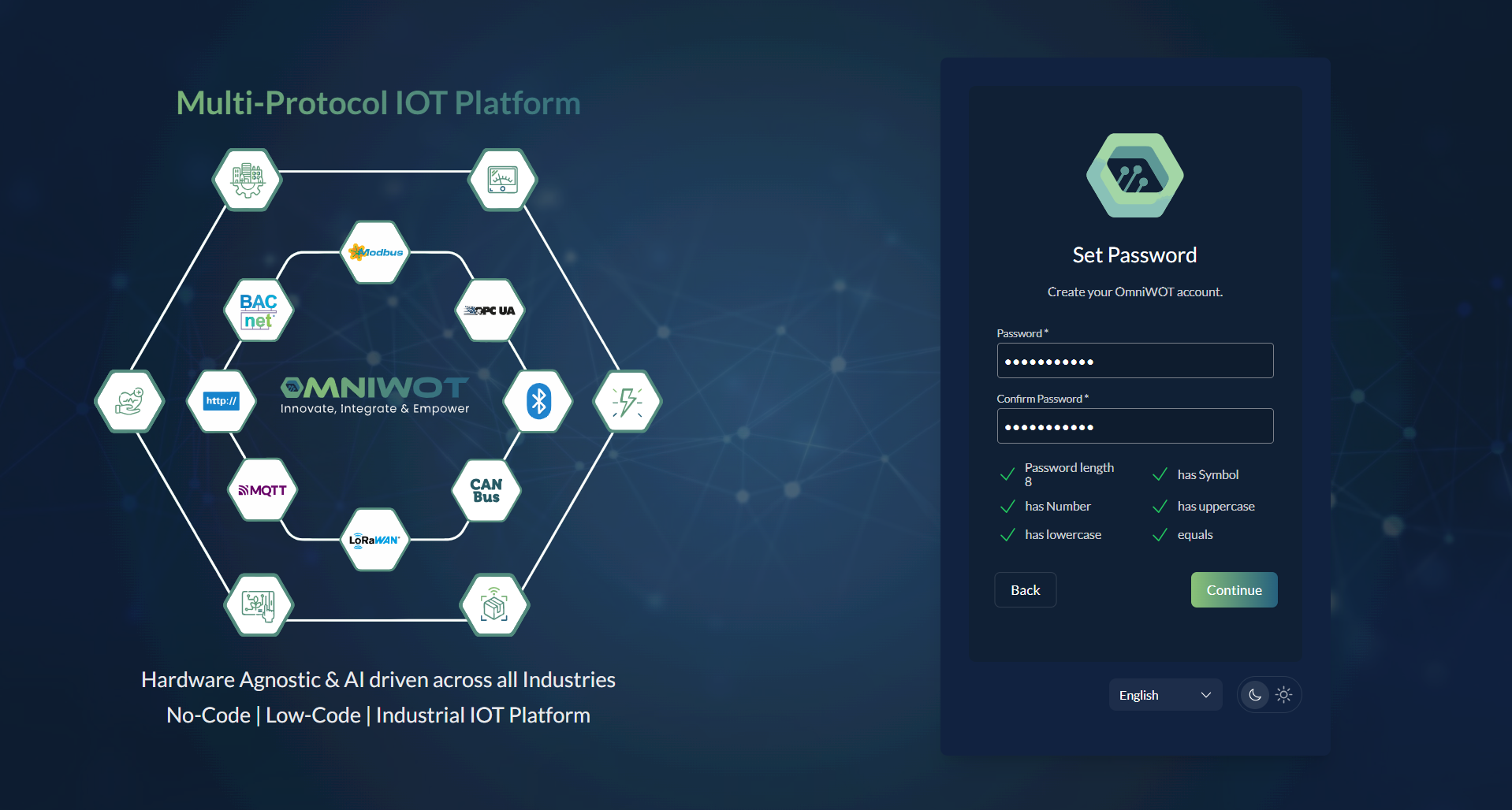
Step 3: Set Up Password
- Select "Password" as your authentication method
- Create a strong password
- Confirm your password
- Click Continue
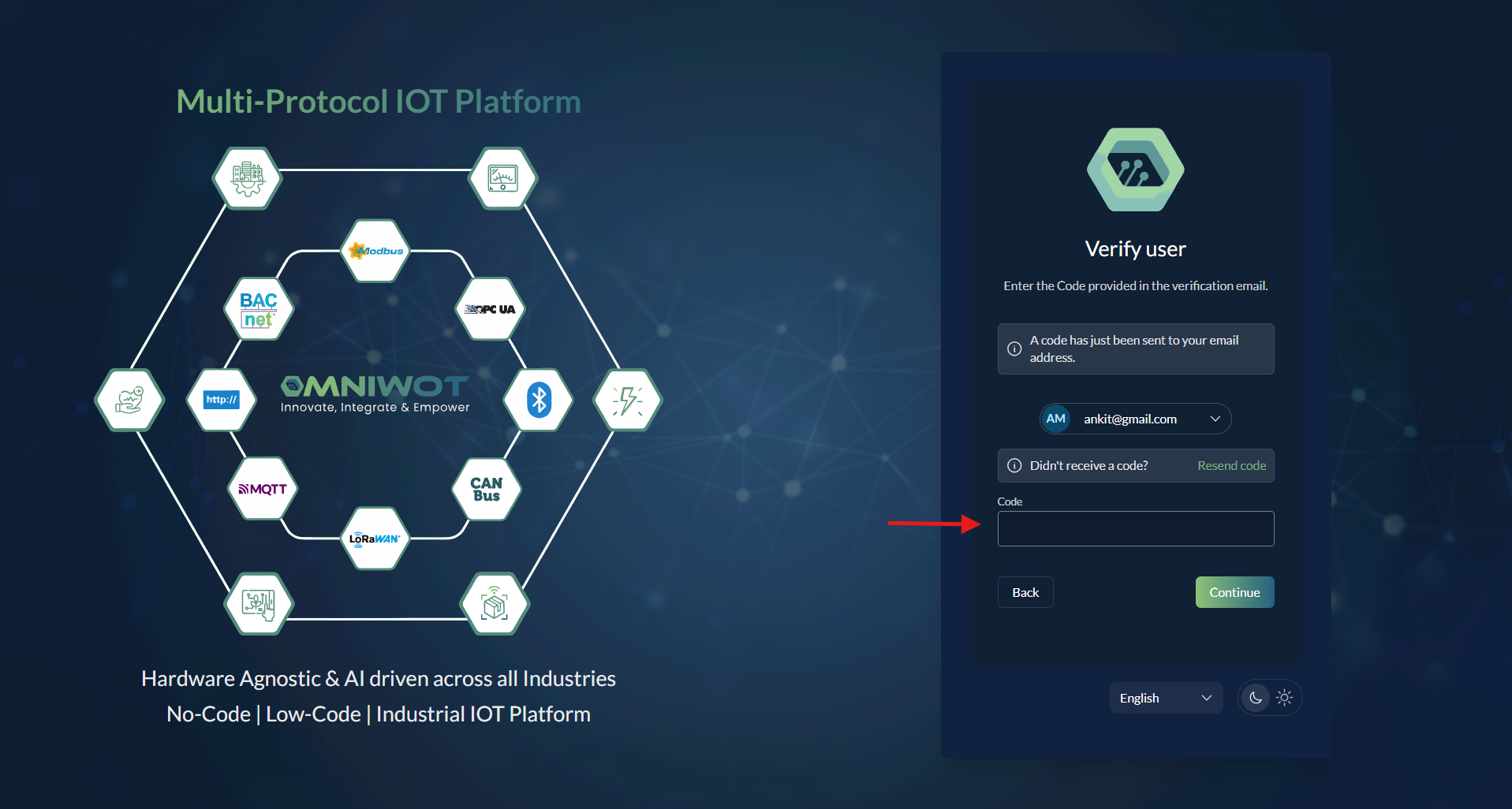
Step 4: Email Verification
- Check your email for the verification code
- Enter the code in the verification field
- Click Continue
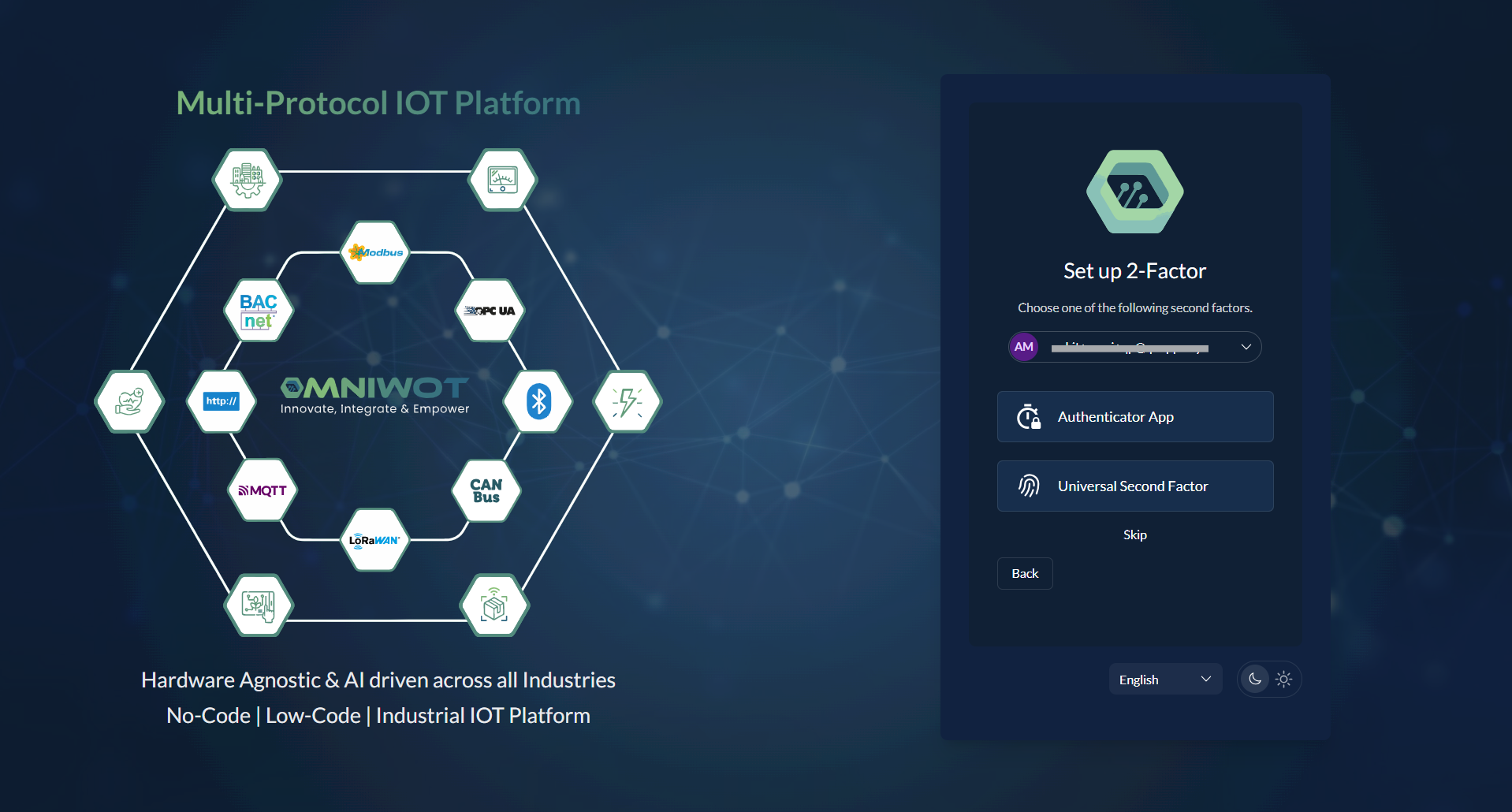
Step 5: Setup 2 Factor
- You can set up 2 factor on any third party authenticator application such as microsoft autheticator, etc.
- You can also skip the step if you don't want to setup 2 factor.
Step 5: Registration Complete
- You will be successfully registered and redirected to the onboarding process
- The system will take you to:
https://platform.omniwot.com/onboarding/organization-details
Onboarding Process
Complete the following steps to set up your organization and first project:
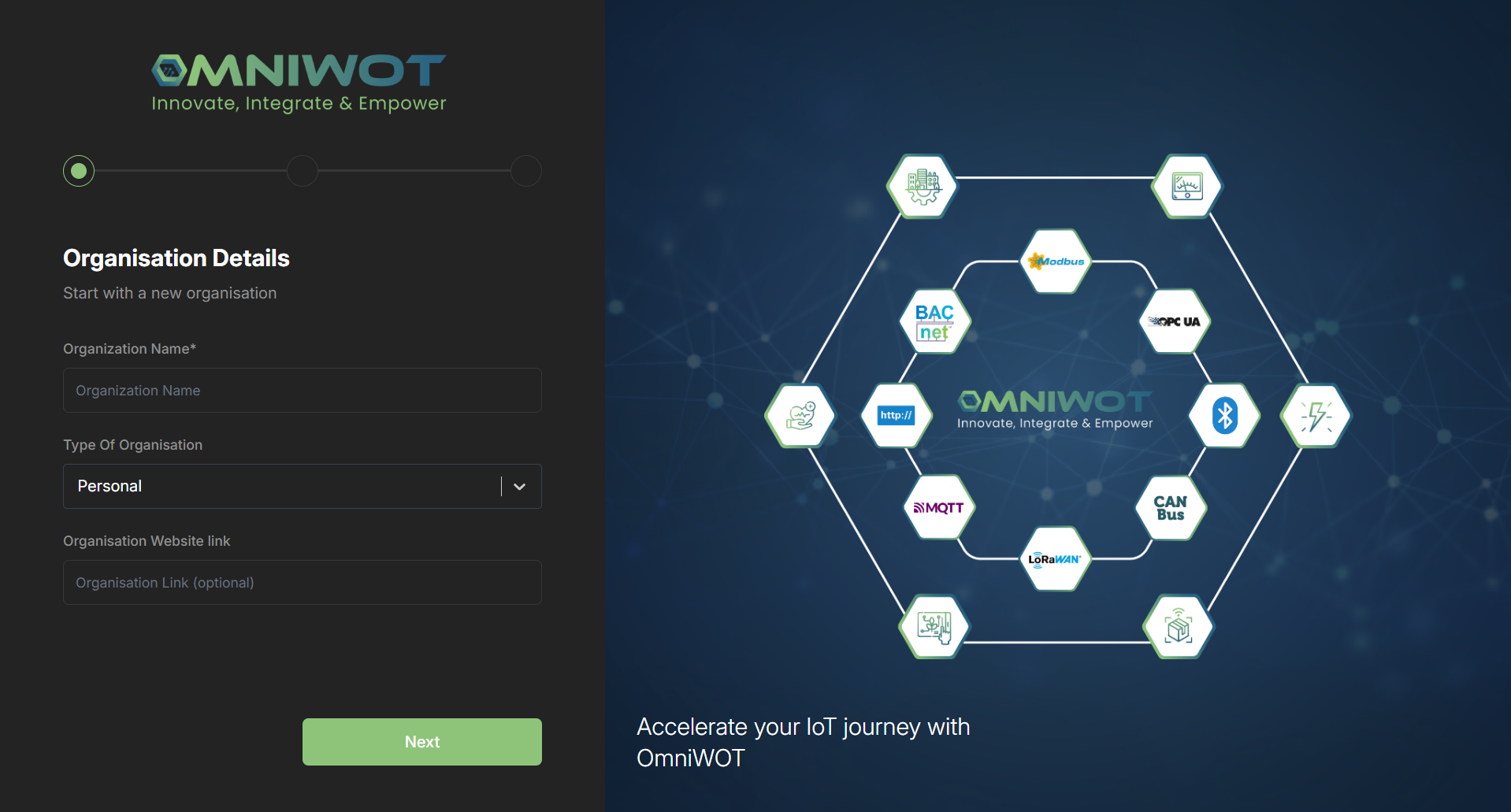
Step 1: Organization Details
- Organization Name: Enter your organization's name
- Organization Type: Select the appropriate type from the dropdown
- Website: Add your organization's website URL (optional - leave empty if not applicable)
- Click Next to proceed
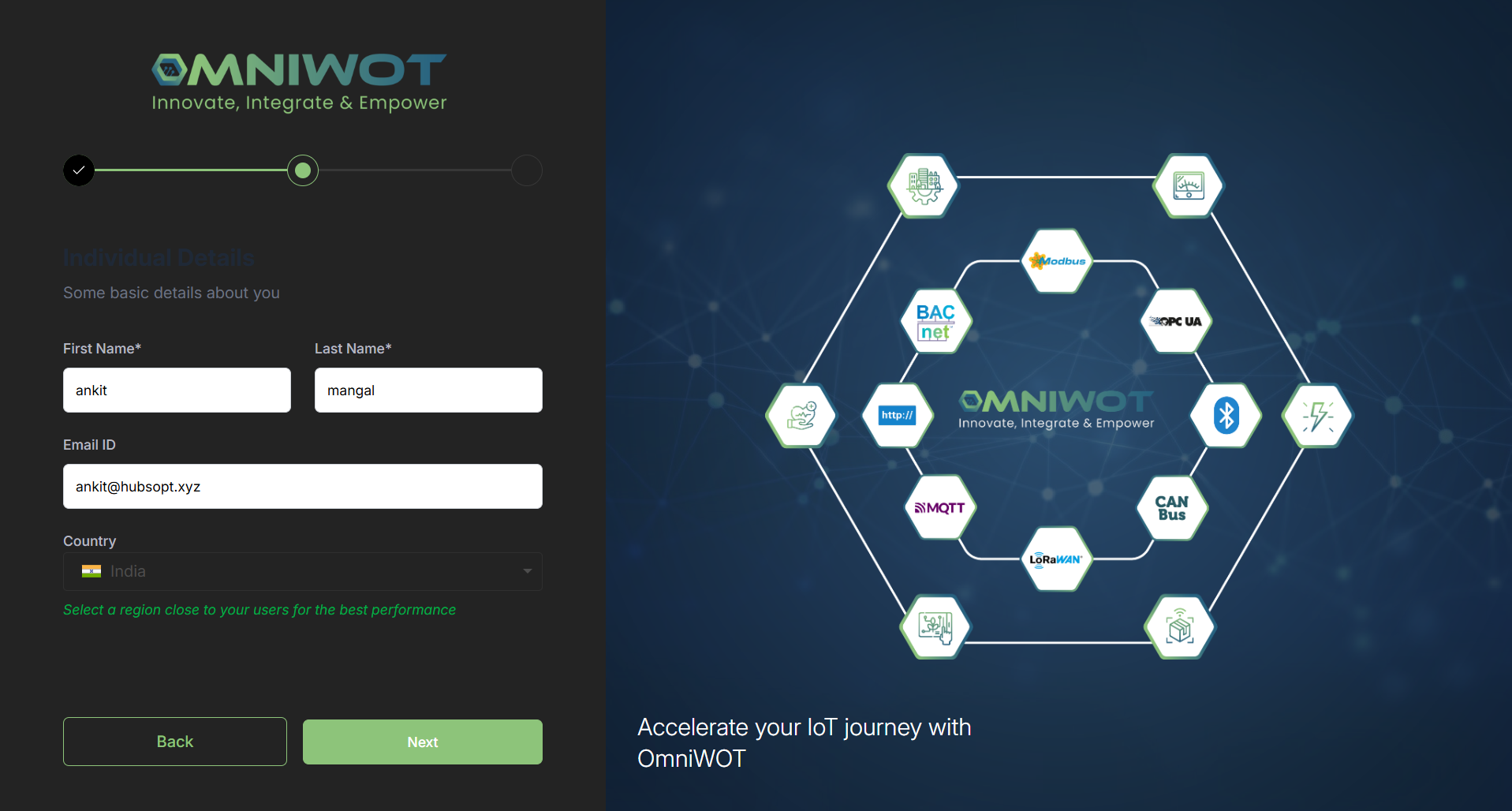
Step 2: Personal Information
- Fill in your personal details as required
- Click Next to continue
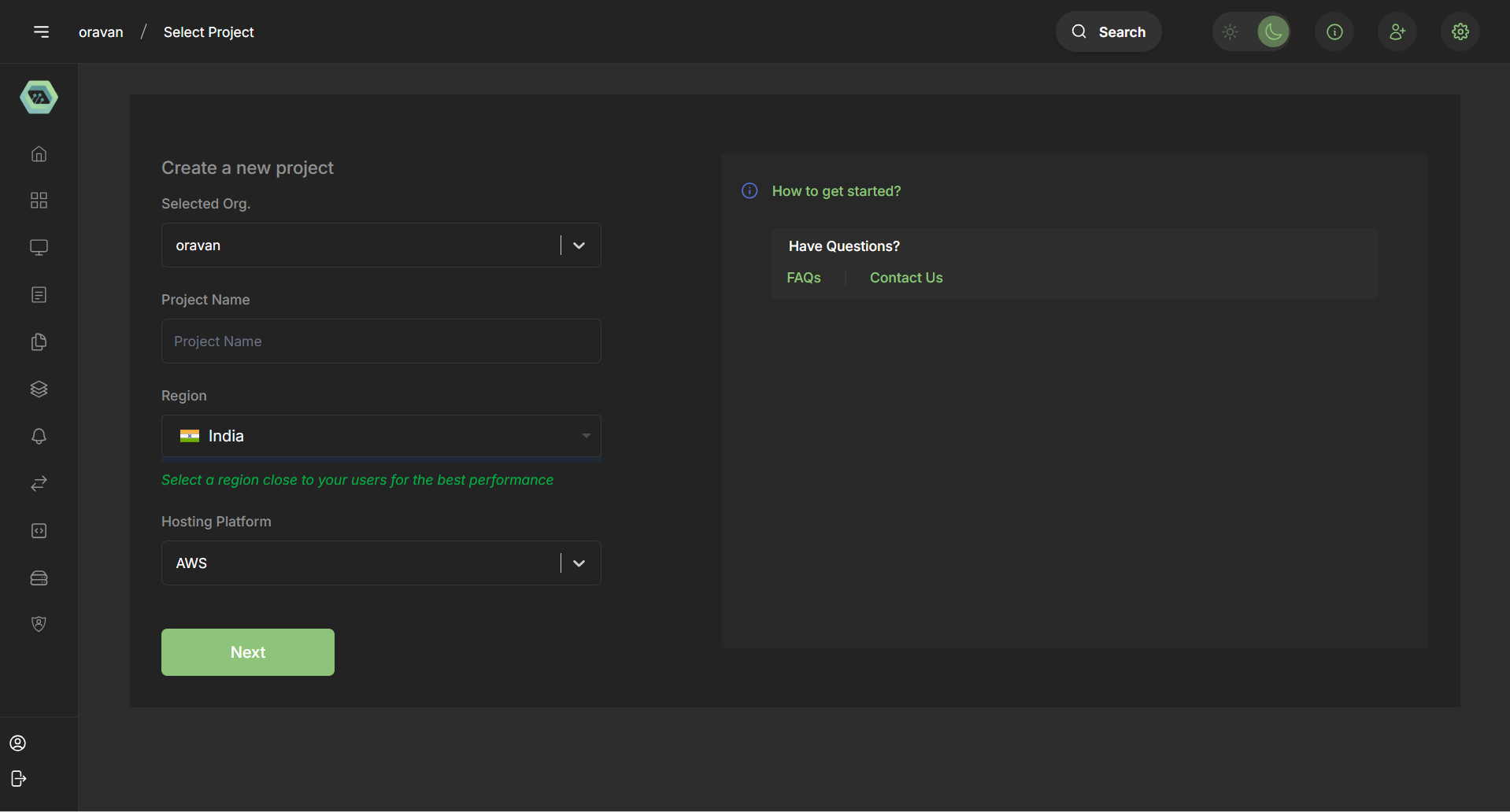
Step 3: Create Your First Project
- Add all required project details
- Configure project settings as needed
- Click Next to finalize
Step 4: Welcome to OmniWOT!
🎉 Congratulations! You have successfully:
- Created your account
- Set up your organization
- Added your first project to the platform
You're now ready to explore the full capabilities of the OmniWOT platform!
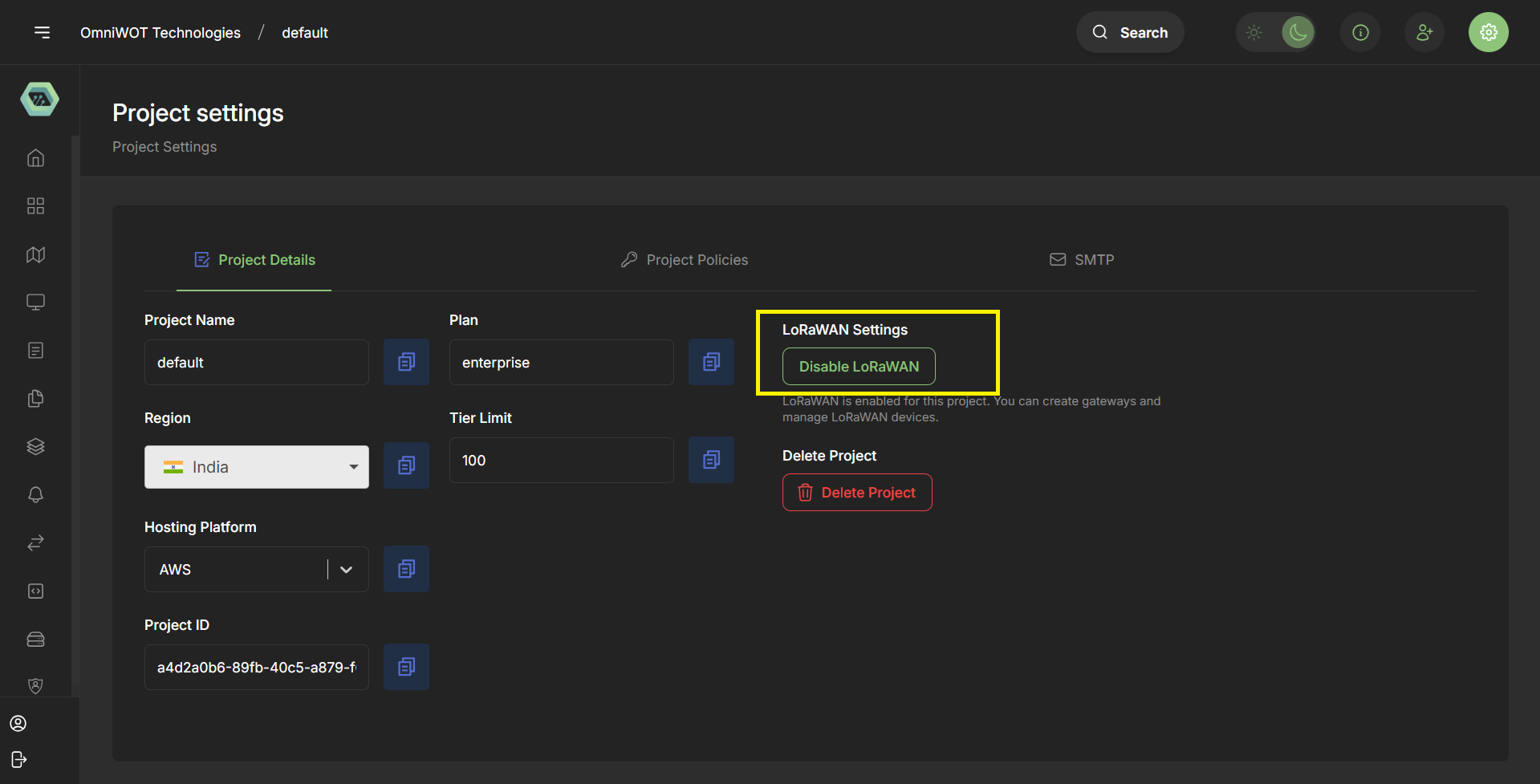
Enable LoRaWAN In Project
Step 1:
- click on setting button in the top right corner
- Open a dropdown menu in that select project settings

Step 2:
- You will get option to enable LoRaWAN in project (if you have not enabled yet)
- Click on
Enable LoRaWANbutton - Now you can see LoRaWAN is enabled in project
Next: Explore the UI and Features to learn how to navigate and use the platform effectively.